Resource

User Guide: How to join a Zoom webinar

Introduction

In this tutorial, we will look at how to participate in a webinar or event via the Zoom platform. To attend our virtual webinars or events via Zoom, a computer, tablet or smartphone are required.

Laptop computer

1. Download Zoom

This section will guide you through the installation and launch of the Zoom videoconferencing software. If you have used Zoom in the past or already have it installed on your computer, some steps may be skipped.

2. Click on the link of the virtual session

24 hours prior to the webinar or virtual event, the Leduc HR team will send you an email with a link (or button) to join the meeting. Click on this link

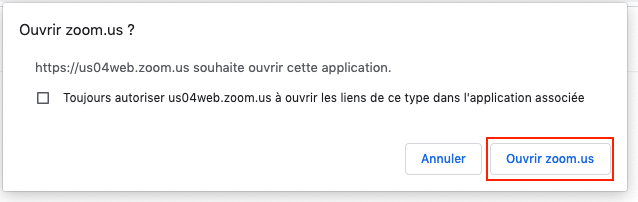
3. Authorize the Opening of the application

Your browser (Chrome, Safari, Internet Explorer, Edge) will open. It will prompt you to open Zoom, Click on Open zoom.us

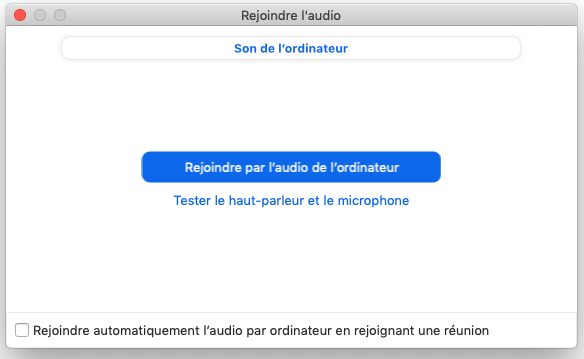
4. Join the call

Once the application is open, Zoom will prompt you to start the meeting. Click Join by computer audio

5. Wait for the Facilitator to let you in

You will be placed in a virtual waiting room. Once the facilitator is ready to begin the session, he or she will let you in.

Cell phone or tablet

This section will guide you through the installation and launch of the Zoom video conferencing software. The steps are the same whether you are using your cell phone or your tablet. 

If you have used Zoom in the past or already have it installed on your device, some steps can be skipped.

1. Download Zoom

Start by downloading the application to your device. You can do this by going to the application store on your phone and searching for Zoom…

2. Open the meeting link

24 hours prior to the webinar or virtual event, the Leduc HR team will send you an email with a link (or button) to join the meeting. Click on this link

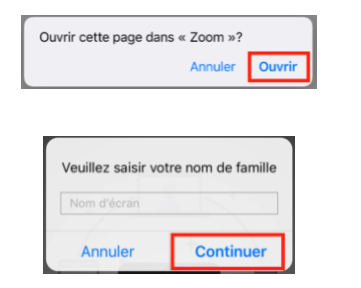
3. Authorize the opening of the application

You will be prompted to open the application. Follow the prompts and enter your name when prompted.

4. Join the call

Once the application is launched, you will be asked to authorize your microphone and join the call. Follow the instructions.

5. Wait for the facilitator to let you in

You will be placed in a virtual waiting room. Once the facilitator is ready to begin the session, he or she will let you in.

Ce billet était-il utile? / Was this post useful?

Skip to content